

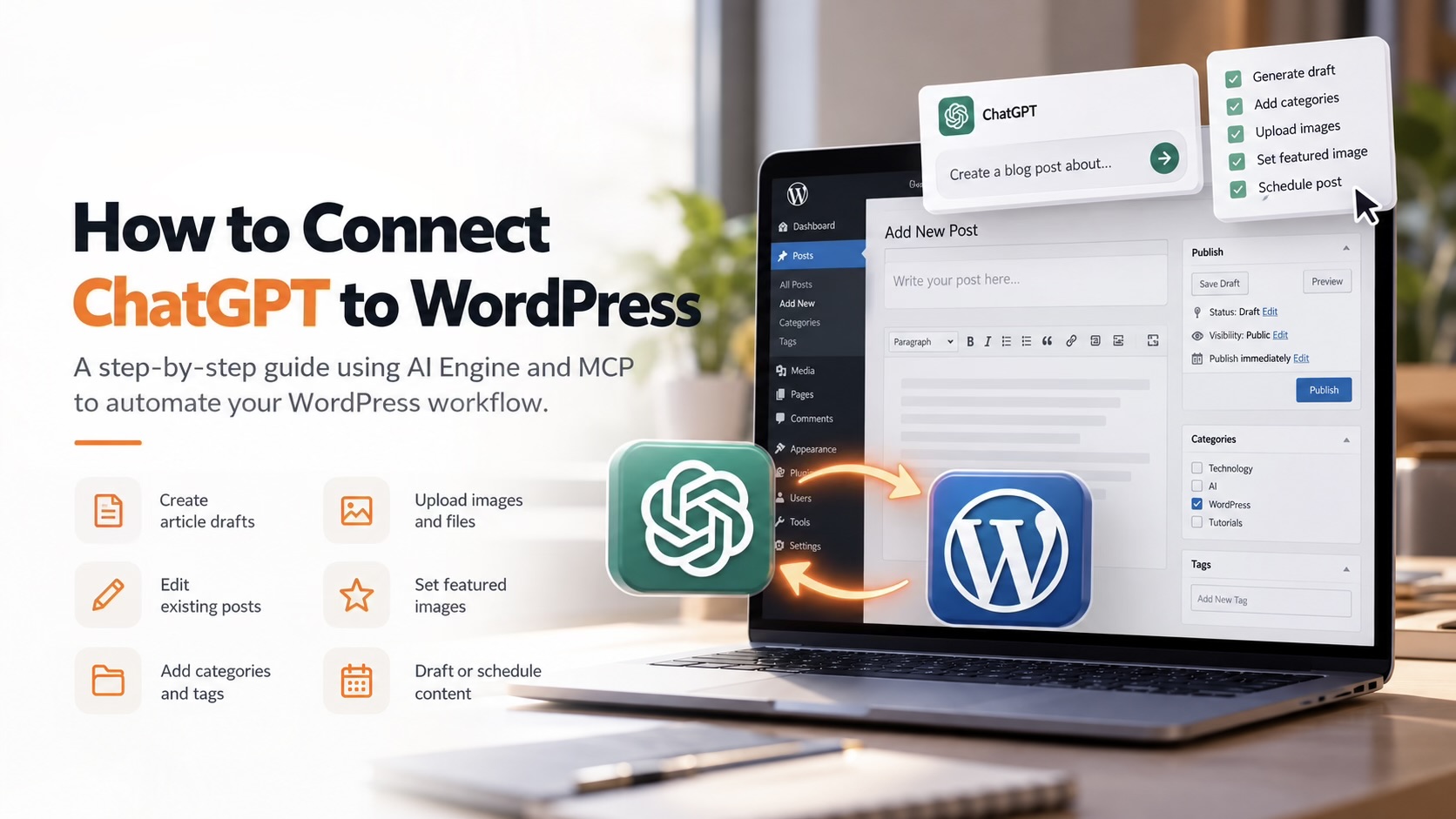
Managing content in WordPress often involves a repetitive workflow: create or edit content in one tool, copy it, switch to WordPress, format the article, upload images, add categories and tags, and finally save or publish the post.
By connecting ChatGPT directly to WordPress, you can reduce many of these repetitive steps and create a more efficient content workflow.
In this guide, we’ll show you how to connect ChatGPT to WordPress using AI Engine and MCP, and how this connection can help streamline common WordPress content-management tasks.
What Can ChatGPT Do After Connecting to WordPress?
Once the connection is properly configured, ChatGPT can assist with a variety of WordPress-related tasks, depending on the tools and permissions you enable.
- Create article drafts
- Edit existing posts
- Add categories and tags
- Upload images and files
- Set featured images
- Save content as a draft
- Prepare content for scheduling
Instead of generating content in ChatGPT and manually transferring everything into WordPress, you can create a workflow where supported actions are handled through the connection.
For example, you could give ChatGPT an instruction such as:
“Create an SEO-friendly article, add relevant images, and save it to my WordPress site as a draft.”
The main benefit is not simply AI-generated content. The real advantage is reducing the manual steps between creating content and preparing it inside WordPress.
Step 1: Install AI Engine in WordPress
Start by logging in to your WordPress admin dashboard.
Go to:
Plugins → Add New Plugin
Search for:
AI Engine
Install the plugin and activate it.
For the basic connection covered in this guide, the free version can be sufficient.
After activating the plugin, open the AI Engine settings and locate the MCP section.
The path should be similar to:
AI Engine → Settings → MCP

Step 2: Enable the MCP Connection
Inside the AI Engine settings, open the MCP configuration section.
Enable the MCP connection.
For a focused WordPress content workflow, you can keep the WordPress-related tool enabled while leaving unnecessary tools disabled.
- WordPress — ON
- Themes — OFF
- Plugins — OFF
- Database — OFF
This keeps the connection focused on the WordPress functionality needed for content-management tasks.
It is generally a good idea to enable only the tools that are actually required for your workflow.

Step 3: Connect WordPress to ChatGPT
After enabling MCP, open the ChatGPT connection section inside the plugin.
The connection process can be summarized in four basic steps.
1. Copy the Connection URL
Copy the connection URL generated by your WordPress setup.
2. Add the Connection in ChatGPT
Open ChatGPT and add the provided connection URL in the appropriate connection or integration area.
3. Sign In and Approve Access
Follow the authentication process and approve the connection between ChatGPT and your WordPress website.
4. Confirm the Connection
Once the authorization process is complete, the connection should be ready to use.
Your WordPress website can now receive supported instructions through the connected workflow.

Using ChatGPT With Your WordPress Workflow
Once the connection is active, you can start giving ChatGPT instructions related to WordPress content management.
Instead of simply asking ChatGPT to write an article and then manually copying the result into WordPress, you can create a more action-oriented workflow.
For example:
“Create an SEO-friendly article about our new service and save it as a draft in WordPress.”
Or:
“Update the existing article, improve its structure, add appropriate categories and tags, and save the changes as a draft.”
The exact actions available will depend on your WordPress configuration, enabled tools, permissions, and the capabilities available through the connection.
Practical WordPress Tasks You Can Streamline
Create Article Drafts
ChatGPT can help prepare structured article drafts with headings, sections, summaries, and other content elements.
Instead of manually transferring the completed text into WordPress, the connected workflow can help prepare the content directly as a draft.
Edit Existing Posts
You can also use ChatGPT to assist with improving existing WordPress content.
For example, you can request improvements to:
- Article structure
- Readability
- Headings and subheadings
- Grammar and wording
- Content organization
Manage Categories and Tags
Categories and tags can be included as part of your content instructions, reducing the need to manually configure every article after it has been created.
This can be especially useful when you manage a large amount of recurring content.
Upload Images and Files
Supported media actions can also become part of your workflow.
This may help reduce the number of manual steps required when preparing blog posts and other WordPress content.
Set Featured Images
Featured-image management can also be included in supported WordPress workflows, helping you prepare a more complete article before final review.
Save Content as a Draft
One of the most practical approaches is to use ChatGPT to prepare content while keeping the article in Draft status.
This gives you an opportunity to review everything before publishing.
Prepare Content for Scheduling
If scheduling is part of your publishing process, the connected workflow can also help prepare content for a future publishing date when supported by your configuration.
Why Connect ChatGPT Directly to WordPress?
The biggest advantage is reducing the friction between content creation and content management.
A traditional workflow might look like this:
Idea → ChatGPT → Copy → WordPress → Format → Add Media → Add Tags → Save
With a connected workflow, several of those manual transitions can be reduced.
This can be particularly useful for people and teams regularly managing:
- Blog articles
- SEO content
- News posts
- Knowledge-base articles
- Service pages
- Website updates
- Recurring editorial content
The more frequently you publish content, the more valuable a streamlined workflow can become.
Keep Human Approval in the Workflow
Connecting AI to WordPress does not mean giving up control of your website.
For important actions, especially publishing, modifying critical content, or deleting content, human review should remain part of the workflow.
A practical approach is to let ChatGPT assist with creating and organizing content while saving new material as a draft.
Before publishing, review important details such as:
- Factual accuracy
- Grammar and readability
- Brand voice
- Links
- Images
- Featured image
- Categories and tags
- SEO title and description
- Publishing settings
This approach allows you to benefit from automation while maintaining editorial control.
A Better Way to Use AI With WordPress
Many people use ChatGPT only as a separate writing tool.
They generate text, copy it manually, open WordPress, paste it into the editor, format everything, add media, configure metadata, and continue the publishing process manually.
Connecting ChatGPT to WordPress changes that workflow.
Instead of using AI only to generate text, you can begin using it as part of a broader content-management process.
This can help reduce repetitive work while allowing you to spend more time on tasks that still require human judgment, such as strategy, quality control, branding, and final approval.
Final Thoughts
Connecting ChatGPT directly to WordPress using AI Engine + MCP can create a more efficient workflow for managing website content.
Once configured, ChatGPT can assist with tasks such as creating drafts, editing existing posts, managing categories and tags, handling media, setting featured images, and preparing content for publication.
The goal is not to automate every decision.
The most effective approach is to automate repetitive tasks while keeping important publishing decisions under human review.
If you regularly create or manage content in WordPress, integrating AI into your workflow can help make the entire process more organized, efficient, and easier to manage.
Want more practical guides about AI, automation, WordPress, and modern digital workflows?
Follow ARS Network for more tutorials, tools, and technology insights.




Leave A Comment